

How do I navigate to the Treasury Management workspace?
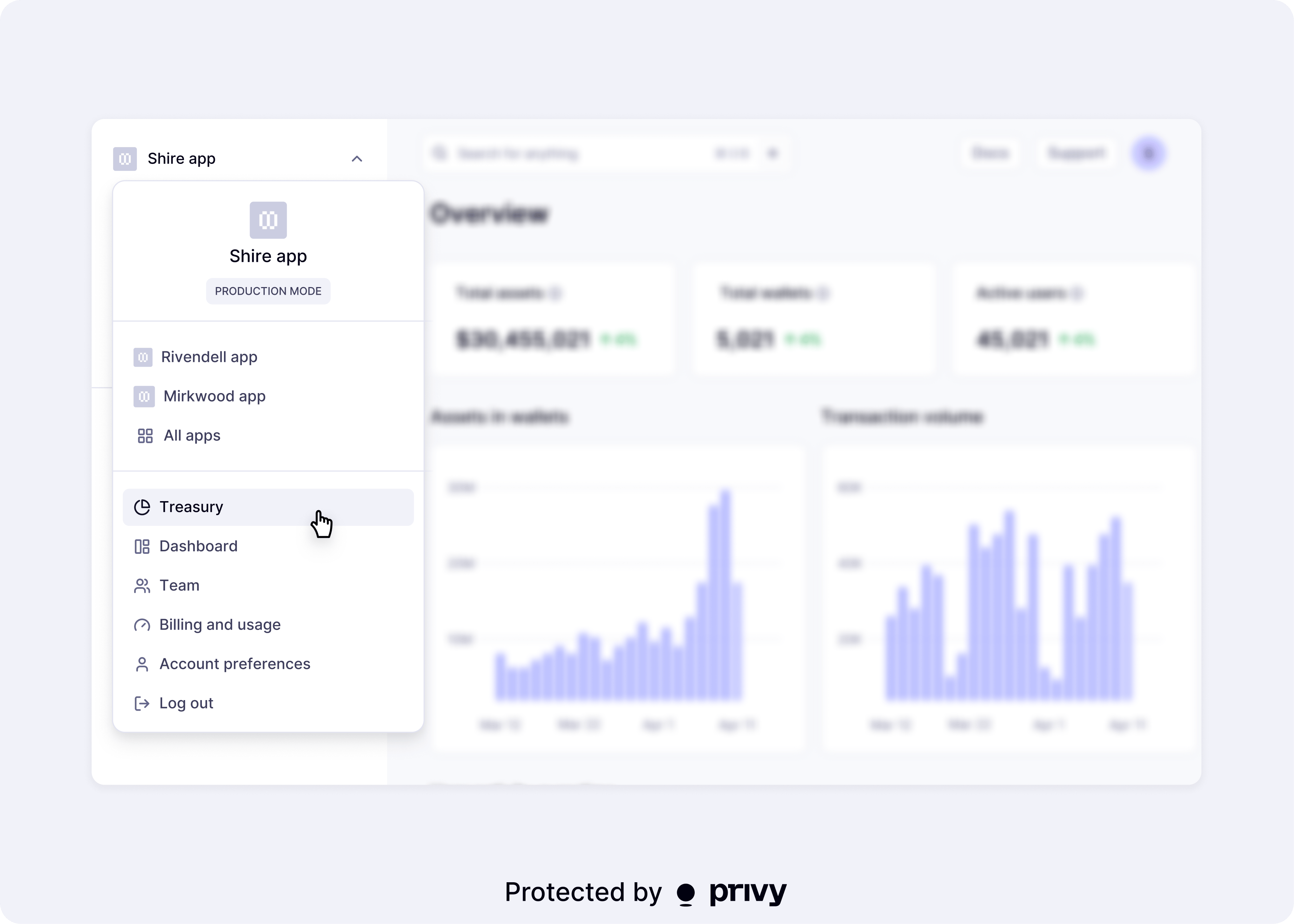
The Treasury Management workspace lives at the account level in the Privy dashboard, not within a specific app. To access it:- Log in to your Privy dashboard
- Navigate to the account-level view
- Click Treasury Management in the sidebar
I sent funds to my wallet, but I can’t see the balance in the Treasury Management workspace
The Treasury Management workspace only displays balances for monitored assets. If you funded your wallet but don’t see the balance:- Navigate to the Assets page under Treasury Management > Settings > Assets
- Confirm the token you deposited is listed as a monitored asset
- If it is a custom ERC20 or SPL token, first add it to your Asset watchlist as a monitored asset
How do I verify the balance of my wallet?
The Treasury Management workspace only displays balances for supported and monitored assets. If you have sent unsupported assets to your wallet and would like to confirm the onchain balance of a treasury wallet independently of the dashboard:- Click on the wallet name in the Treasury Management workspace
- Select Details and copy the wallet Address
- Paste the address into a block explorer for the relevant chain (e.g., Etherscan for Ethereum, Solscan for Solana)
I see an asset in my Treasury Management workspace, but I’m not able to send it out
If a transfer is being blocked despite the asset appearing in your dashboard balance, first check the following:- Policy restrictions: A policy on the wallet may restrict which tokens, chains, or recipients are allowed. Navigate to Treasury > Policies to review the rules applied to your wallet.
- Quorum approvals: The transaction may require key quorum approval before it executes. Check Treasury > Pending for transactions awaiting signatures.
- Gas sponsorship: If the wallet does not hold native gas tokens and gas sponsorship is not configured, the transaction cannot be submitted onchain.
- Restricted assets and chains: The workspace only supports a subset of supported chains and assets.
Can I both automate actions and collect manual approvals?
Yes. Treasury wallets support both automated transfers via API and manual approval flows. Your app can programmatically initiate transfers via the Transfers API while still enforcing key quorum approvals and policies on each transaction. For example, an automated system can propose a transfer, but the transaction will not execute until the required number of quorum members approve it — unless the policy and quorum configuration allow for immediate execution. See Automations for more on programmatic transfers.How do I convert from stablecoins to fiat?
To offramp from stablecoins back to fiat currency, initiate a transfer from your treasury wallet to a liquidation address or virtual account address provided by your offramp partner. Once the stablecoin transfer confirms on-chain, the offramp provider converts the funds to fiat and deposits them into your bank account. Common payout approaches include:- Sending USDC/USDT onchain to an exchange account or OTC desk
- Transferring to a virtual account address tied to a fiat settlement rail
How do I request support for another chain?
To request support for an additional chain on the Treasury Management workspace, please reach out to [email protected].Privy is actively adding more chains. Contact sales with your chain
requirements and timeline.