> ## Documentation Index
> Fetch the complete documentation index at: https://docs.privy.io/llms.txt
> Use this file to discover all available pages before exploring further.
# Manual approvals
Manual approvals add a human review step before sensitive actions take effect. Team members can review, authorize, or reject proposed changes to wallets or policies or proposed transactions in the Privy Dashboard.
Manual approvals is an Enterprise feature. Reach out to [sales@privy.io](mailto:sales@privy.io) to
request access for your app.
All authorizations performed through the Privy Dashboard are secured by biometric and/or TOTP MFA.
## How it works
To set up manual approvals for your Privy account:
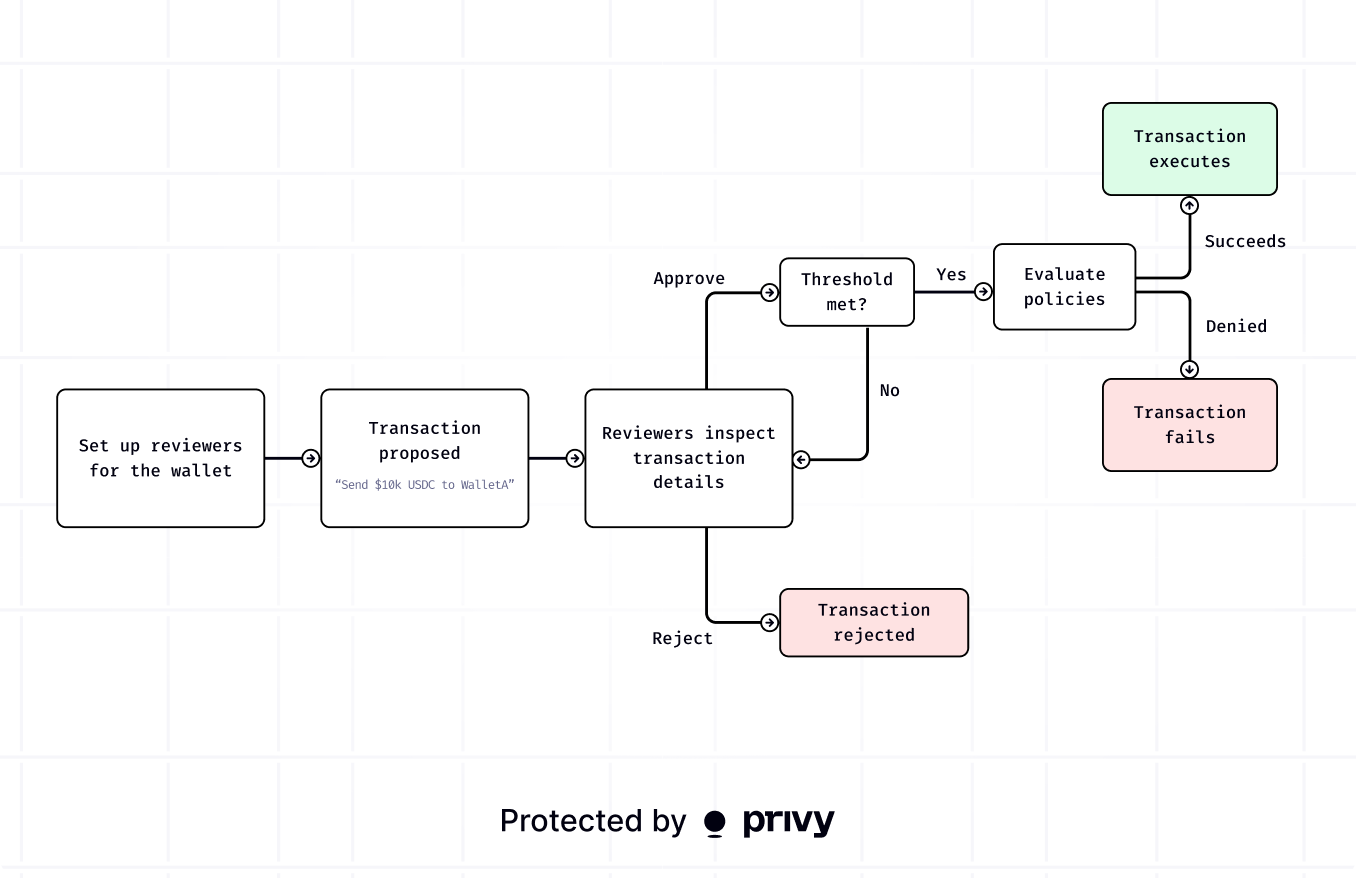
Create a [key quorum](/controls/dashboard/key-quorum) of team members from your Privy account in the Dashboard. Configure the members of the group and the approval threshold needed to reach consensus.
This group of reviewers can later approve or reject proposed intents such as wallet or policy updates, signatures, and transactions via the Privy Dashboard.
When creating a [wallet](/api-reference/wallets/create) or [policy](/api-reference/policies/create) via the Privy Dashboard or API, assign the key quorum as the [owner](/controls/authorization-keys/owners/overview). The quorum must then review and approve any proposed updates.
For wallets, the quorum must also approve proposed signatures or transactions. Your app can alternatively add the quorum as a [signer](/controls/authorization-keys/owners/overview) on the wallet to give it permission to approve certain signatures and transactions without the ability to update the wallet itself.
Via the Privy API or Dashboard, [propose an **intent**](/controls/dashboard/intents) such as updating a wallet, updating a policy, or executing a signature or transaction.
The intent then enters a review queue for team members in the assigned key quorum.
Team members [review the intent](/controls/dashboard/approvals) on the [Approvals](https://dashboard.privy.io/apps?page=approvals) page of the Dashboard. Each reviewer inspects the proposed change and decides to approve or reject it. Approvals are secured by biometric or TOTP MFA.
Once enough team members approve (based on the quorum threshold), the proposed action executes.
## Get started
Get started with manual approvals using the guides below.
Create a key quorum of team members who review intents.
Propose intents to authorize a transaction or update a wallet or policy.
Approve or reject intents in the Privy Dashboard.
Understand intent statuses from pending to executed.
Retrieve intent status and execution results via the API.
Receive real-time notifications when intents are created or authorized.
 ## Get started
Get started with manual approvals using the guides below.
## Get started
Get started with manual approvals using the guides below.