> ## Documentation Index
> Fetch the complete documentation index at: https://docs.privy.io/llms.txt
> Use this file to discover all available pages before exploring further.
# Create a key quorum
To enable manual approvals, first create a [key quorum](/controls/key-quorum/overview) of team members who serve as reviewers. Assign this group as an owner or signer on resources so that proposed changes, signatures, and transactions require their approval before taking effect.
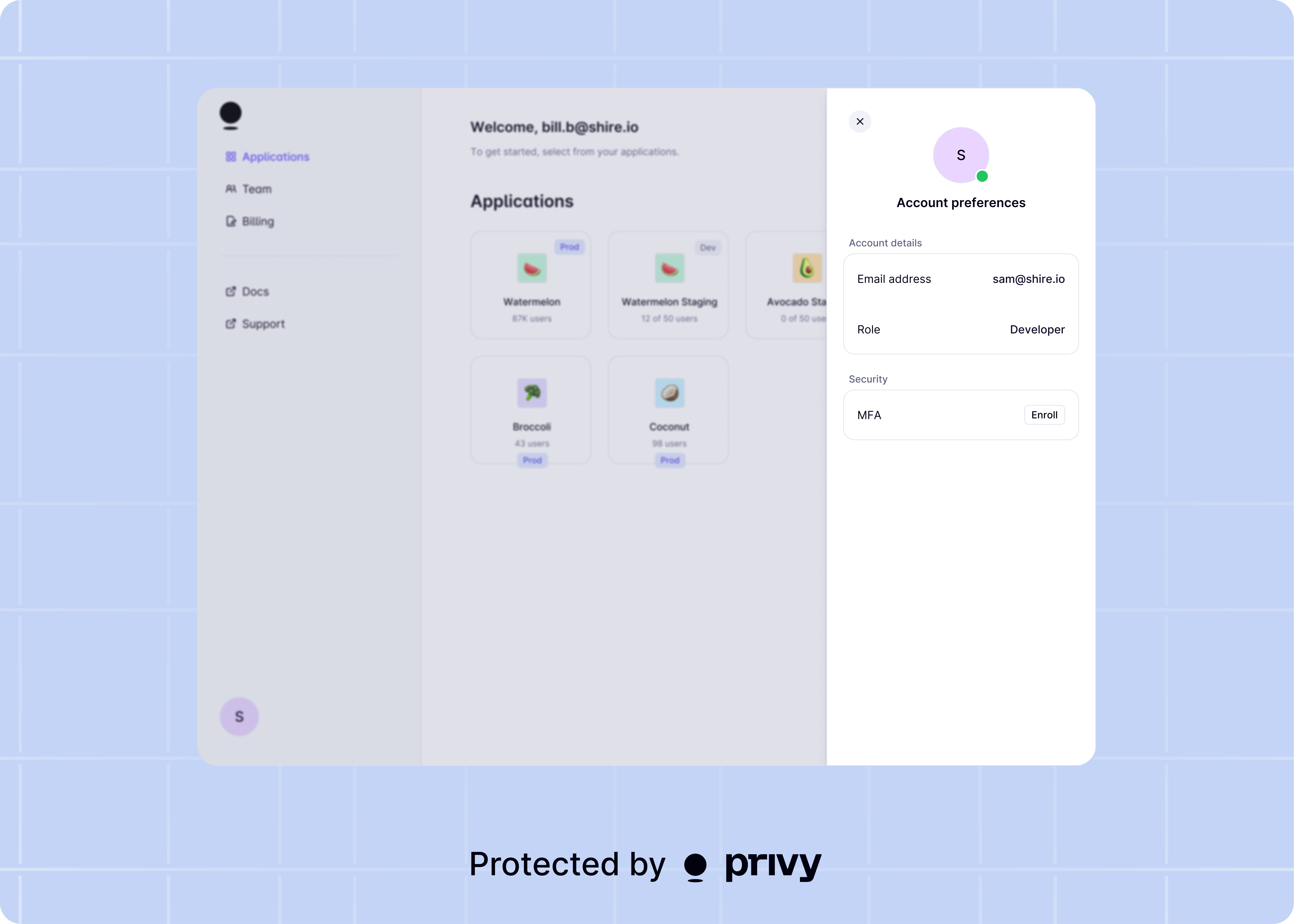
Invite team members from the [Account](https://dashboard.privy.io/account) page of the Dashboard. Give each member the **Developer** or **Admin** role so they can be enrolled in a key quorum.
Each key quorum member **must** set up biometric or TOTP MFA for their Dashboard account.
Team members enroll in MFA by clicking the profile icon at the bottom left of the Dashboard, selecting **Account preferences**, then clicking **MFA enrollment**.
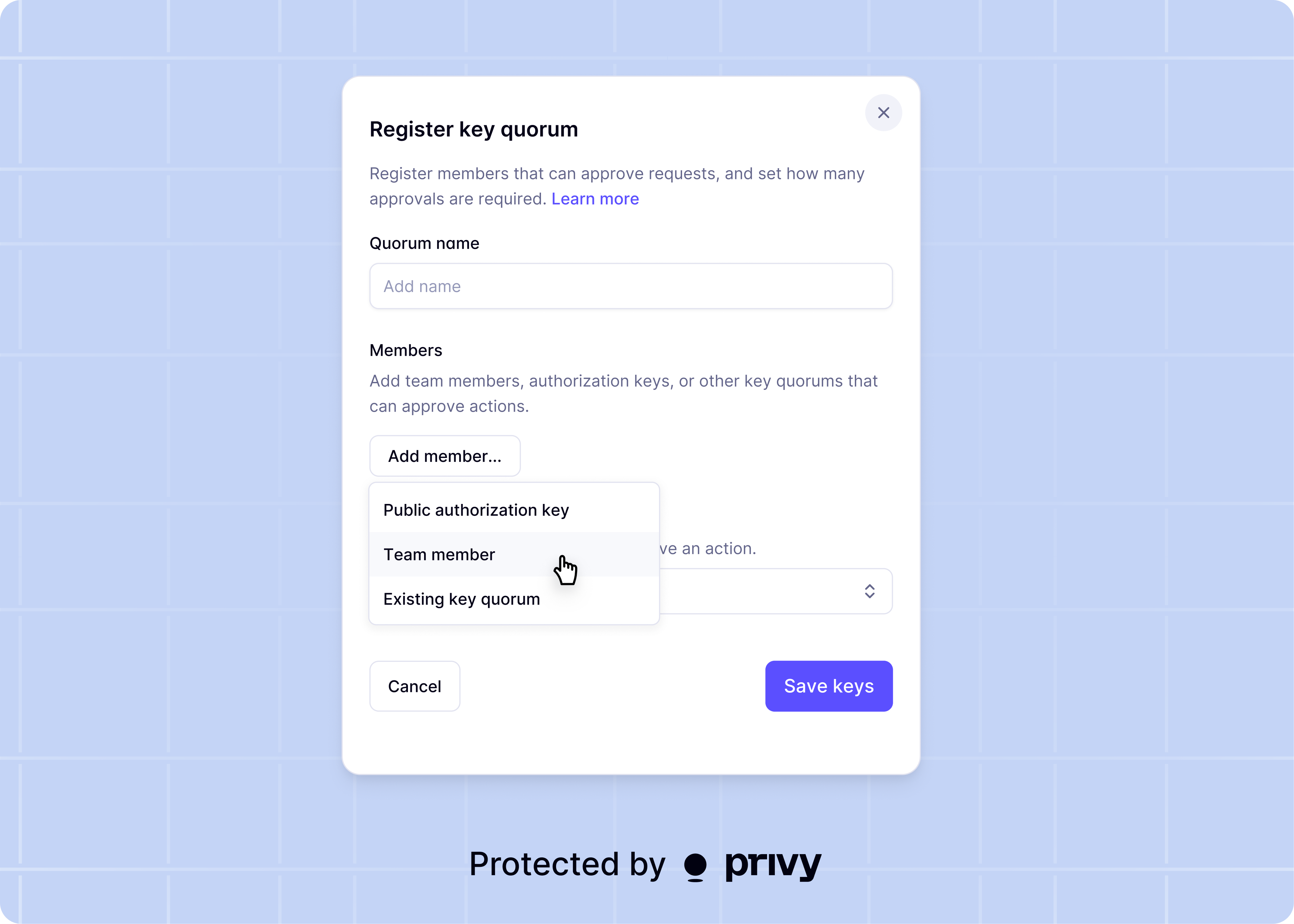
 Visit the [Authorization](https://dashboard.privy.io/apps?page=authorization-keys) page and click **New key**. In the modal, select **Register key quorum**.
Set a **Name** for the quorum and select members from the **Team members** dropdown. Then set the **Authorization threshold** -- the number of reviewers who must approve an intent before it executes.
Visit the [Authorization](https://dashboard.privy.io/apps?page=authorization-keys) page and click **New key**. In the modal, select **Register key quorum**.
Set a **Name** for the quorum and select members from the **Team members** dropdown. Then set the **Authorization threshold** -- the number of reviewers who must approve an intent before it executes.
 When creating wallets or policies that require manual approval, set the new key quorum as the `owner`. This assigns the key quorum as the resource's Owner, requiring its members to review and approve any proposed updates, signatures, or transactions. Separately, this key quorum can be set as a Signer on a wallet, enabling that quorum to sign and send transactions.
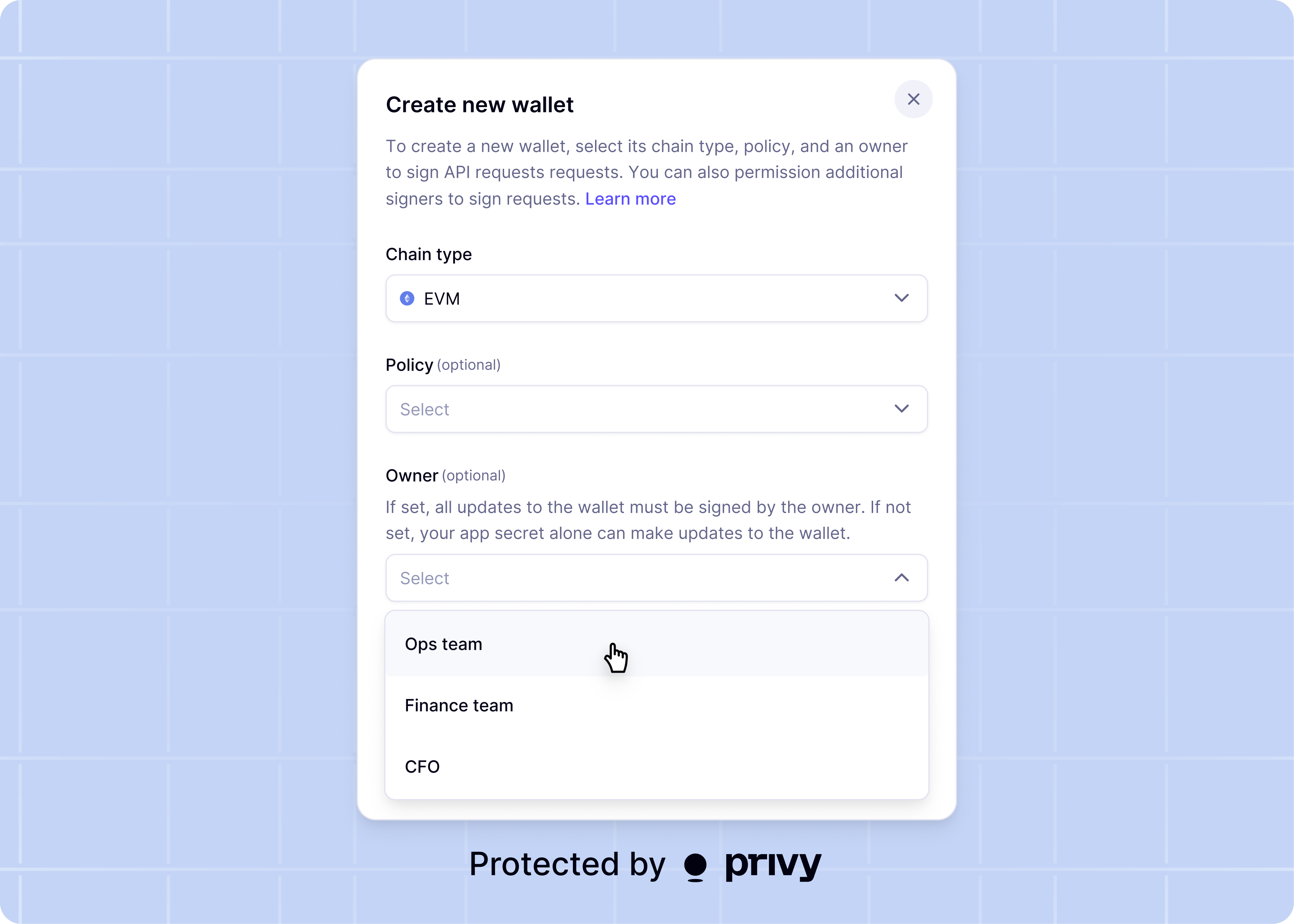 Alternatively, set the `owner_id` on a resource via the API when [creating a wallet](/api-reference/wallets/create) or [creating a policy](/api-reference/policies/create).
## Next steps
Propose intents to authorize a transaction or update a wallet or policy.
Approve or reject intents in the Privy Dashboard.
Learn more about the lifecycle of an intent.
Alternatively, set the `owner_id` on a resource via the API when [creating a wallet](/api-reference/wallets/create) or [creating a policy](/api-reference/policies/create).
## Next steps
Propose intents to authorize a transaction or update a wallet or policy.
Approve or reject intents in the Privy Dashboard.
Learn more about the lifecycle of an intent.