> ## Documentation Index
> Fetch the complete documentation index at: https://docs.privy.io/llms.txt
> Use this file to discover all available pages before exploring further.
> Install the Privy Unity SDK to enable embedded wallet authentication in your Unity game or app.
# Installation
## Supported Platforms
* ✅ MacOS / iOS
* ✅ Android
* ✅ WebGL
* ❌ Windows
* ❌ Linux
## Prerequisites
* Unity Editor **2022.3.42f1** or newer
## Installation
Privy's Unity SDK can be installed via the Unity Package Manager, OpenUPM, or by copying the SDK folder directly into your project.
### Option 1: Unity Package Manager (git URL)
1. Open your project in the Unity editor.
2. Navigate to **Window > Package Manager**.
3. Click the **+** button and select **Add package from git URL**.
4. Enter the following URL:
```
https://github.com/privy-io/unity-sdk.git?path=SDK
```
### Option 2: OpenUPM
1. Install the [OpenUPM CLI](https://openupm.com/docs/getting-started-cli.html) if you haven't already.
2. From your project root, run:
```bash theme={"system"}
openupm add io.privy.sdk
```
The SDK bundles third-party dependencies (`jsoncanonicalizer` and `unity-webview`) inside
`SDK/ExternalDependencies`. If your project already includes any of these packages, manually
exclude the duplicates to avoid conflicts.
## Using Privy namespaces
Privy v1.0 organizes its public types into specific namespaces. Add the relevant `using` directives at the top of each file:
```csharp theme={"system"}
using Privy.Core; // IPrivy, PrivyManager
using Privy.Auth; // AuthState
using Privy.Wallets; // IEmbeddedEthereumWallet, IEmbeddedSolanaWallet, RpcRequest, RpcResponse
```
## WebGL Setup
Privy's Unity SDK leverages an iframe to [secure the key material]() for a user's embedded wallet. Given the use of an iframe, we recommend testing builds with Privy's Unity SDK in the **browser**, or on a **non-WebGL platform** in the Unity editor.
Watch this [demo](https://www.loom.com/share/0bac8322368c44059dff51e2dfc548e8) of setting up the
Privy SDK in a Unity Project!
To configure settings for your WebGL build to work with Privy, go to your **Project Settings** in the Unity editor. Next, select **Player** and navigate to **WebGL**. Set the following values:
* In **Resolution and Presentation**, select `unity-webview`, or `unity-webview-2020` as the template if you are using a Unity editor version newer than 2020.
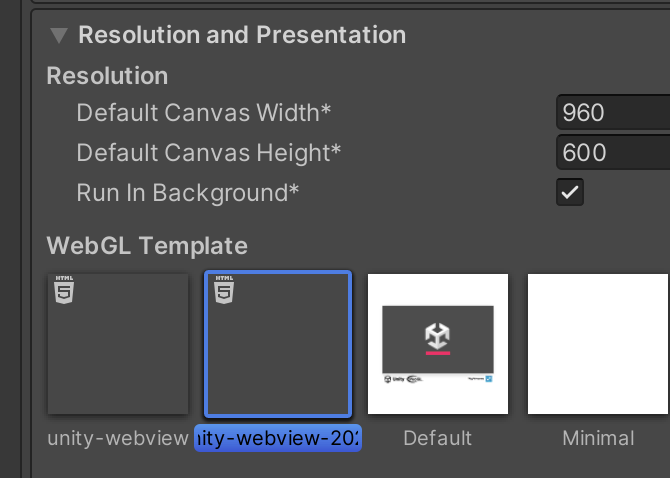 * In **Other Settings/Optimization**, **managed stripping level** to **minimal**
 The following versions of the Unity editor are not supported, due to [this
bug](https://issuetracker.unity3d.com/issues/webgl-cross-origin-embedder-policy-require-corp-http-header-is-included-when-multithreading-is-off):
`2022.3.20f1`, `2022.3.40f1`, `2023.2.12f1`, `6000.0.0b11`.
The following versions of the Unity editor are not supported, due to [this
bug](https://issuetracker.unity3d.com/issues/webgl-cross-origin-embedder-policy-require-corp-http-header-is-included-when-multithreading-is-off):
`2022.3.20f1`, `2022.3.40f1`, `2023.2.12f1`, `6000.0.0b11`.