> ## Documentation Index
> Fetch the complete documentation index at: https://docs.privy.io/llms.txt
> Use this file to discover all available pages before exploring further.
# Setting up wallet MFA for your app
> Enable and configure wallet MFA methods in the Privy Dashboard for your application
Once a user enrolls in MFA, it will remain enabled **even if you disable MFA for your app**. Users
must manually disable MFA on their wallets if they wish to remove it.
To enable MFA for your app, select your desired app from the sidebar and navigate to the **User management > Authentication > MFA** page.
Within the **MFA** tab, scroll down to the **Enable MFA for transactions** section and **select the desired MFA methods** you'd like to enable for your app.
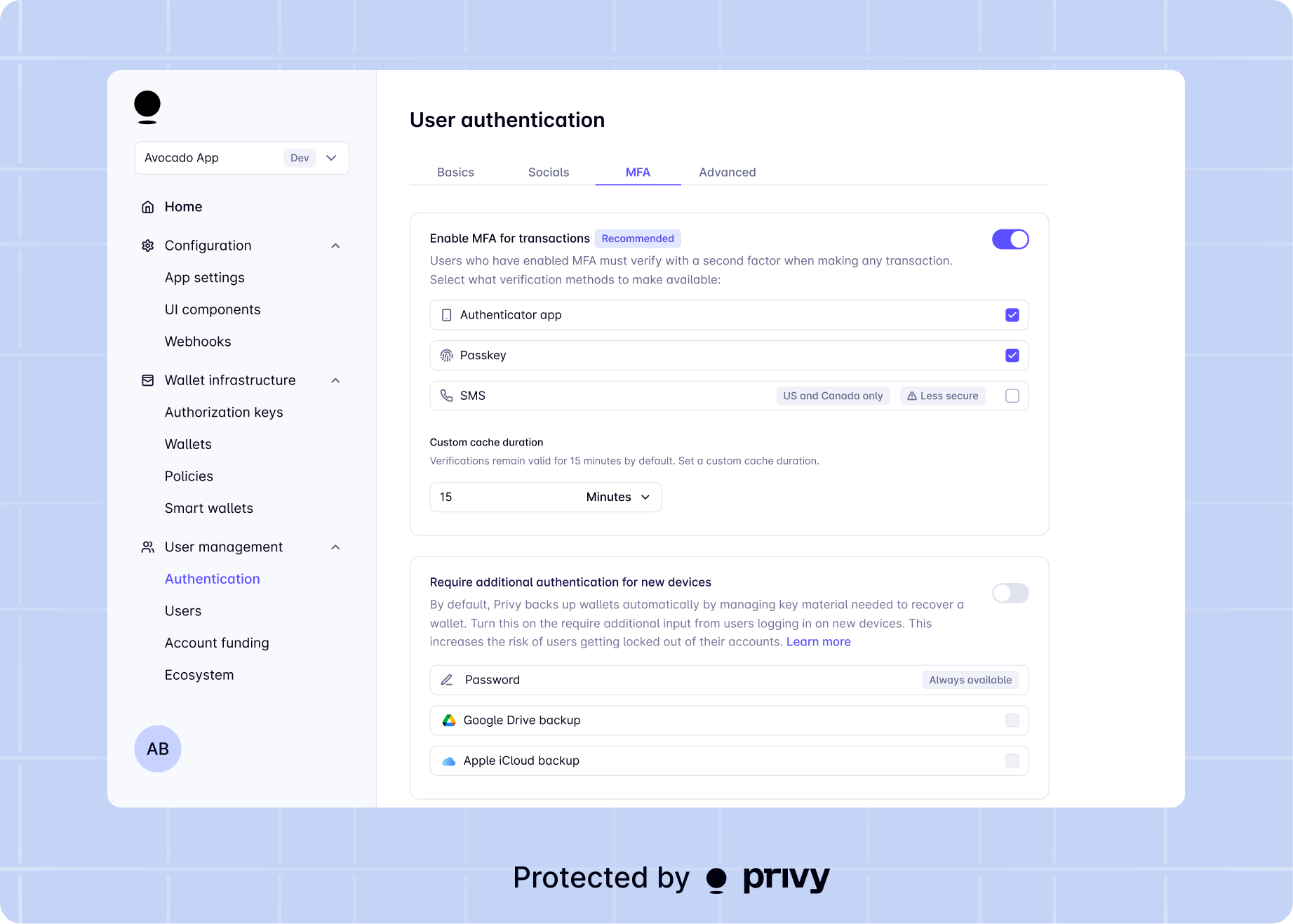 Once you have selected your desired MFA methods and saved changes, you can prompt your users to enroll in any of the methods you've enabled!
Please note that:
* If your app has SMS enabled as a login method, you **may not** enable SMS as an MFA method as well.
With SMS login enabled, SMS can already be used as the primary factor to authenticate the user for access to their wallet; it cannot be enabled as an additional factor as well.
* To use passkeys as an MFA method, you *must* also enable passkeys as a login method
## Implementation options
Privy offers two approaches to implement wallet MFA:
1. **Building custom UIs** - Build your own MFA flows with full control over the user experience. This approach works with all Privy SDKs.
2. **Using Privy's default UIs** - Available for **React and React Native only**. Privy handles the UI components for enrollment and verification.
Once you have selected your desired MFA methods and saved changes, you can prompt your users to enroll in any of the methods you've enabled!
Please note that:
* If your app has SMS enabled as a login method, you **may not** enable SMS as an MFA method as well.
With SMS login enabled, SMS can already be used as the primary factor to authenticate the user for access to their wallet; it cannot be enabled as an additional factor as well.
* To use passkeys as an MFA method, you *must* also enable passkeys as a login method
## Implementation options
Privy offers two approaches to implement wallet MFA:
1. **Building custom UIs** - Build your own MFA flows with full control over the user experience. This approach works with all Privy SDKs.
2. **Using Privy's default UIs** - Available for **React and React Native only**. Privy handles the UI components for enrollment and verification.